
Schedule an Advising Appointment
Not sure who your advisor is? Visit our “Who is my advisor?” webpage and use the search box to find your advisor based on major and last name.
Please Note: Your advisor’s available appointment formats (such as in-person, email, phone, or Zoom advising) will be listed in the Additional Details section of the appointment set-up form.
Preparing for your appointment:
- Watch your MTSU email for updated instructions.
- Familiarize yourself with DegreeWorks, the degree-audit system available in your PipelineMT account.
- Zoom, phone, or email appointments: Be ready with computer access, in the event we need to guide you using online resources.
(Want to keep these instructions available while you schedule your appointment? Here’s a tip! Right-click on the “Schedule My Appointment!” link and choose “Open in New Window”.)
How to schedule your advising appointment
1. Log into Navigate using your Pipeline credentials. You can also find the “Schedule an Advising Appointment” link in Pipeline’s Registration and Student Records page.
2. On the Navigate Homepage, click on the blue “Schedule an Appointment” button found at the top right of the page.

3. Choose Advising as the appointment type.

4. Click on the box under Service and type CBHS to see possible options. Choose the option that best fits you. (Do you want to talk with an advisor about a CBHS minor or about changing to a major in CBHS? Start typing the name to find the minor and “change to major” options.)
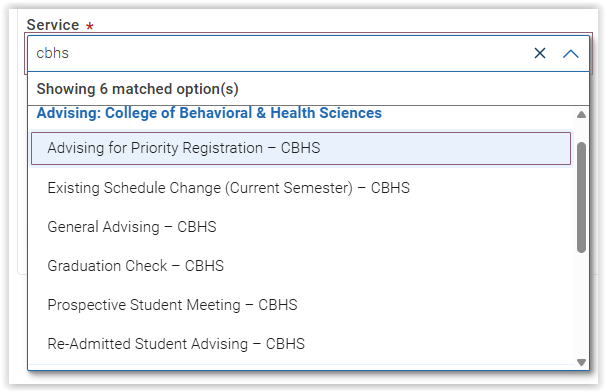
5. Choose a date, or leave the date as-is to search for the earliest possible appointments.

6. Click the blue “Find Available Time” button.

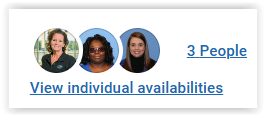
7. If you see more than one person listed, click on “View individual availabilities” and choose the applicable advisor. (Tip: Visit our “Who is my advisor?” webpage and use the search box to find your advisor based on major and last name.)
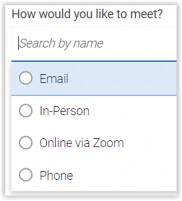
8. Choose how you would like to meet.
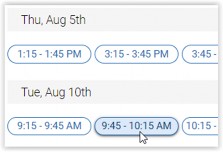
9. Choose an appointment day and time from the list on the right. Click on a time bubble to select that appointment slot.
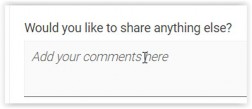
10. Carefully read any notes from your advisor in the Details section. In the comments box, provide any info they requested, along with any additional info that may be helpful as they prepare for your appointment.
11. Mark whether you want an email and/or text reminder; add your cell phone number if applicable. (Tip: Your advisor will not receive this number. Be sure to provide any contact info in the comments box also!)

12. Click the blue Schedule button to schedule the appointment then watch for a confirmation email to verify that it went through.